How to Use Microsoft Designer: Your Guide to Creating Stunning Visuals
Microsoft Designer is an innovative tool driven by artificial intelligence technology. It enables both novices and professional designers to craft stunning graphics and visuals.
Whether you’re aiming to create personalized invitations, professional-looking social media posts, or compelling digital advertisements, Microsoft Designer offers an accessible, web-based platform harnessing the power of AI to streamline the design process.
Its user-friendly interface allows you to generate unique content easily. This tool transforms your ideas into eye-catching designs with minimal effort.

Embracing AI to boost your creative workflow, Microsoft Designer simplifies the daunting task of design through its intelligent assistance.
The application guides you to create visuals that stand out while saving you time through automated features, pre-built templates, and easy integration with various social media platforms.
You’ll learn to harness the full potential of the tool, from generating images with simple descriptions to making fine-tuned adjustments and exporting your designs for widespread sharing.
Key Takeaways
- Utilize AI-driven tools to produce professional-grade designs effortlessly.
- Integrate with social media for seamless design optimization and sharing.
- Apply best practices to refine and export your visual creations effectively.
Getting Started with Microsoft Designer
To create professional designs easily, Microsoft Designer provides a suite of tools supported by AI. With these steps, you’ll navigate and utilize Designer effectively for your creative projects.
Signing Up or Logging In
Before accessing Microsoft Designer, sign up for a Microsoft account if you don’t already have one. Owners of a Microsoft 365 subscription may find additional features.
Visit the sign in page and enter your credentials to log in.
Understanding the Interface
Upon logging in, familiarize yourself with the toolbar and various work areas. The toolbar offers quick access to fundamental tools and design elements such as shapes, colors, and fonts.
The central area, known as the canvas, is where you’ll craft your design.
Selecting a Template
For a quick start, choose a template relevant to your design needs. Microsoft Designer offers diverse templates for items like invitations or social media posts.
Click on a template to load it onto your canvas for customization.
Overview of Design Tools
Utilize the design tools to add visuals and graphics. Experiment with effects to enhance the visual appeal of your design.
The shape tool, located in the toolbar, enables you to add geometric elements to your work.
Exploring AI Features
Microsoft Designer’s AI capabilities, such as the DALL-E language model, can generate stunning AI-generated images based on your prompts.
Input a descriptive text, and let the AI add a unique AI touch.
Customizing Your Work Area
You can customize the canvas by altering the background or arranging various design elements. Starting from a blank canvas also allows you to build your design from the ground up, adding each element as you go.
Creating Your Design
Microsoft Designer empowers you with versatile tools and features to craft your visuals. Here, you’re not just placing elements on a canvas; you’re bringing your creative vision to life.
Working with Text
To start, select a font that aligns with the mood of your design. Whether it’s for a heading or body text, you have a variety of typefaces to choose from.
Adjust the size to establish hierarchy between headings, subheadings, and text, ensuring readability and impact.
- Bold for emphasis
- Italicize for quotes or emphasis
- Use bullet points for lists
Adding Visual Elements
Visual elements like icons, illustrations, and artwork play a key role in your design.
Carefully choose images that complement your text and brand message. Quality graphics should not only match your content but also help tell your story more effectively.
- Upload png or jpg for high-quality images
- Add illustrations to convey concepts
- Integrate icons to point out key areas
Incorporating Media Files
For a richer design experience, incorporate various media files.
My Media allows you to manage and use your previously uploaded images, or you can upload new photos and videos.
Ensure that your media is of good resolution and relevant to your design’s purpose.
- Upload png, jpg, or pdf files
- Utilize videos to create dynamic content
Using the Design Suggestions
Leverage Microsoft Designer’s AI capabilities to generate design ideas.
This tool, powered possibly by something akin to OpenAI’s Copilot, provides suggestions that can inspire or be directly applied to your design. It makes the process more efficient for both beginners and professional designers.
- Explore design ideas to spark creativity
- Use AI-generated suggestions to enhance layouts
Leveraging Brand Elements
Maintain a consistent brand image by using your custom brand kit.
Implement your logos, colors, and other brand elements with ease. This consistency establishes a professional look and feel across all your designs.
- Integrate your brand colors and logos
- Consistency with brand elements promotes recognition
Optimizing for Social Media

To effectively engage with your audience on social media, it’s vital to tailor your content to the specific nuances of each platform.
You’ll need to create visually appealing social media posts, ensure they are appropriately formatted, and integrate them seamlessly with other services you may use.
Designing for Platforms
When you’re designing for social media platforms like Instagram or Facebook, keep in mind the unique requirements of each.
Instagram’s visual-centric format calls for high-resolution images and a focus on aesthetics, while Facebook ads may benefit more from attention-grabbing visuals combined with compelling captions.
Utilize Microsoft Designer to access a variety of templates tailored to these platforms. This ensures your posts meet the recommended image dimensions and carry a consistent brand message.
Creating Social Media Posts
Your social media posts should not only be engaging but also optimized to maximize your reach.
Start by selecting an appropriate template in Microsoft Designer that resonates with your brand and message.
Include eye-catching visuals and craft concise captions with relevant hashtags to improve visibility.
A well-designed post can tell a story as effectively as any article, so choose your templates wisely and customize them to reflect your unique style.
Formatting for Different Media
Different social media platforms support various video formats and image dimensions.
Instagram Stories and posts, for instance, generally have dimensions of 1080×1920 pixels for stories and 1080×1080 pixels for regular posts, while Facebook may allow for wider visuals.
Be sure to export your creations from Microsoft Designer in both PNG and JPG formats for images, and consider the native video formats like MP4 for each platform.
Always utilize the preview period in Designer to ensure your content appears as intended before uploading.
Advanced Features and Integrations
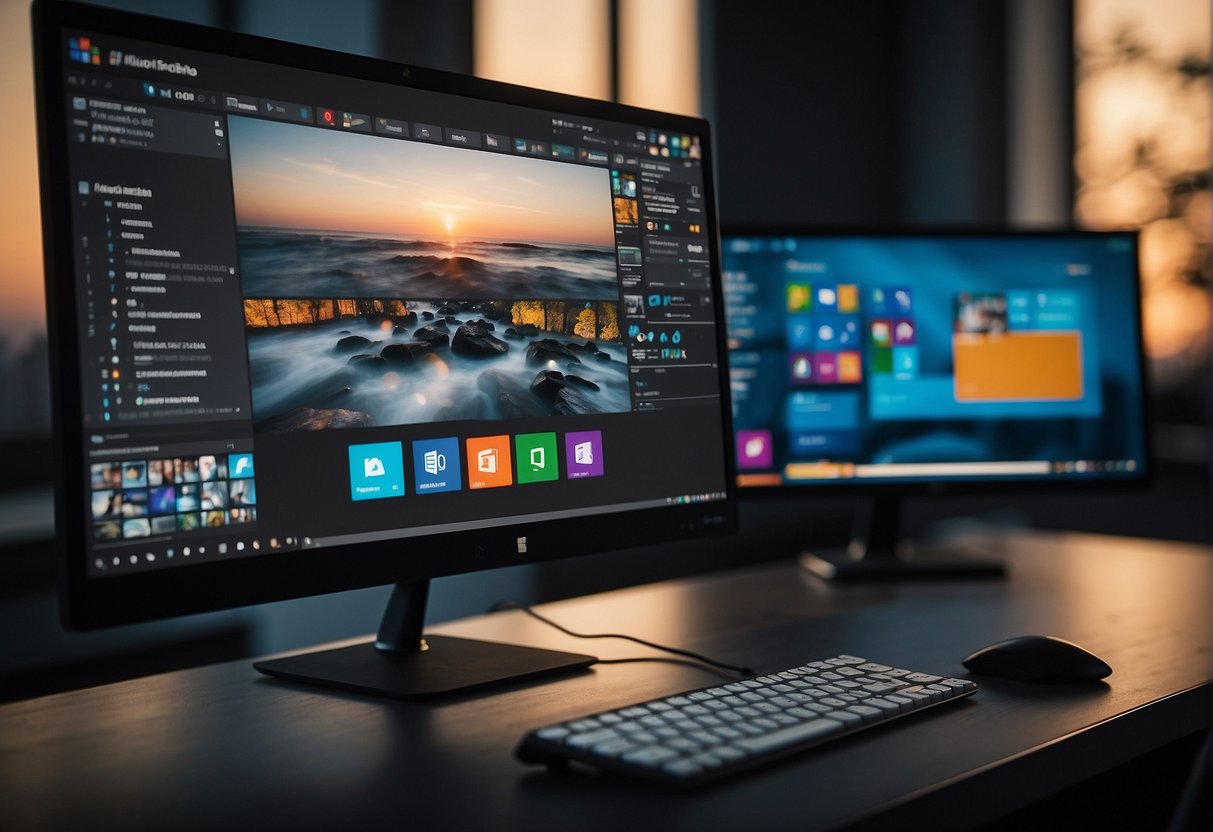
Microsoft Designer offers a suite of advanced features designed to enhance your creativity and collaboration. It integrates seamlessly with Microsoft 365 services and other third-party platforms, providing professional and business users with innovative AI tools to elevate their projects.
Working with Advanced AI Tools
Microsoft Designer leverages powerful AI tools including DALL-E 2, developed by OpenAI.
This enables you to create unique visuals by inputting descriptive prompts. The cloud-based service processes your instructions and generates images that can add a creative flair to your work.
Collaborating and Sharing
When working in a team, collaboration is key. Microsoft Designer allows you to effortlessly save and share your work across platforms such as Microsoft Teams. By doing so, you stay connected with colleagues, receive feedback in real-time, and maintain productivity.
Moreover, your designs can be stored on OneDrive, ensuring they’re available whenever and wherever you need them.
Integrating with Microsoft 365 Services
For Microsoft 365 personal and family subscribers, integration is seamless across tools like Word, PowerPoint, and Excel.
You can easily insert your designs into documents, presentations, or spreadsheets without leaving the Microsoft ecosystem.
This integration streamlines your workflow and keeps all creative assets within your Microsoft 365 applications—a boon for maximizing efficiency.
Exploring Third-Party Integrations
Aside from Microsoft services, Designer also facilitates integration with third-party software such as Canva and Adobe.
This means you can access a broad range of additional templates and design elements, including stock photos, directly within your workflow.
Furthermore, you can use the Edge browser to source and implement creative assets, expanding your design possibilities even further.
Finalizing and Exporting Your Design
Before you complete your creative journey with Microsoft Designer, it’s important to preview and adjust your designs to ensure the final product meets your expectations.
This section will guide you through the steps to finalize and effortlessly export your design in various formats.
Previewing Your Designs
Initiate the preview process by using the Preview feature, which allows you to closely inspect your work.
You can zoom in and out to look at fine details or to see the design as a whole.
Make sure all elements are aligned and the overall composition is balanced.
If your design includes animations or interactive elements, test them thoroughly to ensure functionality.
At this stage, it’s also wise to get feedback from others to see if your design communicates the intended message.
Making Final Adjustments
Should you find any areas that need refinement, use the undo and redo options to efficiently tweak your design.
Whether it’s adjusting the color scheme, repositioning elements, or changing text, make your final adjustments with precision.
Once everything is in place and you’re satisfied with the design, you’re ready to download your project.
Choose the appropriate file format that suits your needs: PNG, JPEG (or JPG), or PDF.
PNG is ideal for maintaining a transparent background, while JPG is more suitable for reducing file size without losing much quality. PDFs are perfect if your design is intended for print.
Make sure to select the desired resolution and any other necessary options provided by Microsoft Designer before saving your masterpiece.
Best Practices and Tips
In using Microsoft Designer, incorporating best practices and strategic tips can elevate your projects.
Whether you’re looking to bolster your business brand, enhance educational materials, or refine design aesthetics, this section will guide you with specific advice tailored to your needs.
Design Tips for Business Use
When developing business-oriented designs, it’s vital to start with a solid foundation.
Leverage templates that align with your company’s style for consistency across materials.
Utilize your brand kit effectively; this should include your logos, colors, and typography.
For impact, Microsoft Designer’s suggestions can help you optimize your visuals for professional presentations and promotional materials.
Maximizing Design Aesthetics
To enhance the overall look and feel of your designs, focus on a harmonious color palette and thoughtful background selections.
Experiment with effects to give depth to your visuals, adding shapes to complement your message.
Background blur and color pop are effective tools within Microsoft Designer that can make key elements stand out, thereby maximizing the design aesthetics.
Educational Uses for Students and Educators
Microsoft Designer offers a multitude of features beneficial for students and educators.
For group projects or assignments, you can collaborate with teams to create compelling presentations.
Use specific design ideas to communicate educational content more effectively, tailoring to your audience with appropriate subheadings and captions.
Leveraging Design Elements for Impact
Understanding and harnessing design elements can significantly improve the visual delivery of your message.
For clear communication, balance your layout, ensuring that each visual contributes to the overall narrative.
Introduce graphic design principles by focusing on alignment, contrast, and hierarchy to guide the viewer’s eye across your design.
For more detailed information on the capabilities of Microsoft Designer and how to use its features, explore guides provided by Guiding Tech, which comprehensively cover the array of tools and functionalities available.
Additionally, insights on creating designs that resonate with your brand or educational goal can be found on Microsoft’s own platform.
Frequently Asked Questions
In this section, you will find detailed answers to common queries regarding Microsoft Designer to help you start and optimize your design journey easily.
What are the steps to begin designing with Microsoft Designer for beginners?
To start with Microsoft Designer, simply visit the Microsoft Designer page and sign in with your Microsoft account.
From there, you can choose a template or start with a blank canvas and use the intuitive tools to create your design.
How can I access Microsoft Designer if I already have an Office 365 subscription?
If you already have an Office 365 subscription, Microsoft Designer is accessible through your existing account.
Navigate to the Office 365 portal, find the app listed there, and click to launch it.
Are there any costs involved when downloading Microsoft Designer, or is it free?
Microsoft Designer is currently available as a free preview. However, certain features may require a paid Microsoft 365 subscription in the future once the preview period concludes.
What is the difference in features between Microsoft Designer and Canva?
While both tools offer design functionalities, Microsoft Designer integrates tightly with other Microsoft applications and may offer features like AI-based suggestions.
Canva is known for its extensive template library and user-friendly interface. Specific feature comparisons should be reviewed on their respective websites.
How do I log in to start using Microsoft Designer?
To use Microsoft Designer, go to the Microsoft Designer website and log in with your Microsoft 365 account.
Once logged in, you can immediately begin creating designs.
In what ways does Microsoft Designer integrate with other Microsoft applications?
Microsoft Designer provides seamless integration with other Microsoft apps. For example, you can import content from Word or Excel. You also have the option to add designs to your PowerPoint presentations. This enhances your productivity across Microsoft 365.