
Microsoft Designer: Unlocking Creativity with Cutting-Edge Graphic Tools
Microsoft Designer is revolutionizing the way we approach graphic design by harnessing the power of artificial intelligence. This innovative tool empowers both seasoned designers and novices alike. With its intuitive interface and AI-powered design suggestions, Microsoft Designer makes design accessible to everyone.
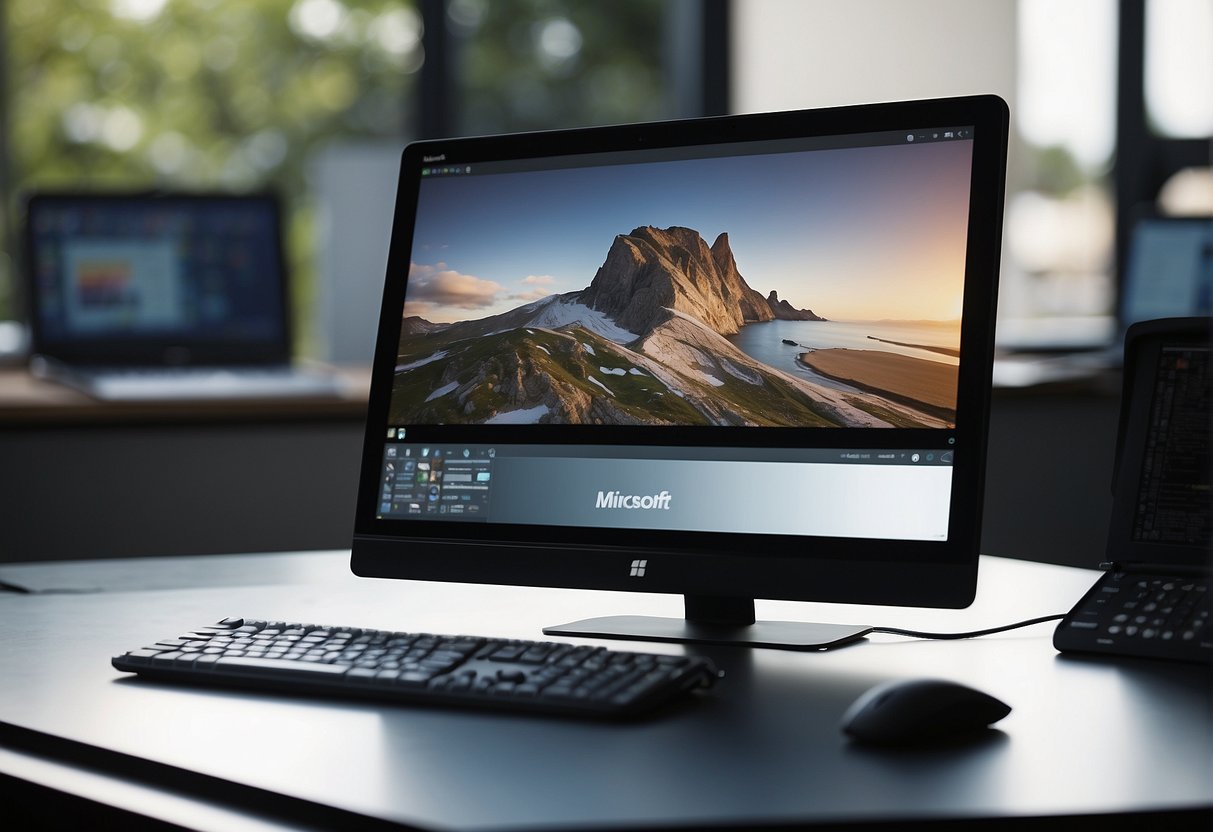
Getting started with Microsoft Designer is straightforward, thanks to its AI-generated design suggestions and a vast array of customizable templates. These features enable users to bring their ideas to life quickly and efficiently.
Beyond the basics, Microsoft Designer offers advanced options such as AI image generation and style filters, catering to those who wish to further refine their designs or explore new creative possibilities.
Key Takeaways
- Microsoft Designer is an AI-powered graphic design app that simplifies creation for experts and beginners.
- The platform includes AI-based tools and templates that speed up design processes.
- It offers an array of advanced features for enhanced customization and creativity.
Overview of Microsoft Designer
Microsoft Designer is an advanced graphic design app that enables users to create professional-quality graphics with ease. It is powered by artificial intelligence to streamline the design process.
Core Features
Microsoft Designer boasts an array of core features that facilitate the creation of graphics such as social media posts, invitations, and digital postcards. Users can start with an idea and quickly bring it to fruition with AI-powered design suggestions.
- Templates: A diverse selection of templates tailored for various projects.
- Generative AI: Integration of AI technology to expedite and enrich the design process.
Integration with Microsoft 365
This design tool is seamlessly integrated with Microsoft 365, meaning users can access it across various Microsoft applications and services. This integration allows for a smooth workflow between Designer and other productivity tools within the Microsoft ecosystem.
- Compatibility: Works with other Microsoft 365 tools like Word and Excel.
- Unified Experience: Provides a cohesive user experience across Microsoft services.
Accessibility and Platforms
Microsoft Designer is accessible from multiple platforms, ensuring users can work on their designs regardless of the device they are using. It supports key operating systems, including Windows, iOS, and Mac.
- Desktop: Available for Windows and Mac users.
- Mobile: Can be used on iOS devices.
- Web Browser: Users can access Designer through web browsers.
Artificial Intelligence Capabilities
The AI-powered aspect of Microsoft Designer sets it apart, as the app leverages the latest AI technology to assist users from ideation to creation. The AI capabilities bring design suggestions, AI-generated images, and adaptivity to user input.
- DALL-E Integration: Incorporates AI-generated images to enhance visual content.
- Design Suggestions: AI suggests designs based on user input to accelerate the creation process.
Getting Started with Microsoft Designer
Starting with Microsoft Designer involves a few initial steps: creating an account, understanding the layout, and taking advantage of the available templates. These foundational actions equip users to begin their design projects efficiently on both desktop and web platforms.
Creating an Account
To use Microsoft Designer, individuals need a Microsoft email account such as @outlook.com or @hotmail.com. It’s free to create an account if they don’t already have one. Once they have their Microsoft email account, users with a Microsoft 365 subscription can access Microsoft Designer’s features.
- Access Microsoft Designer:
- Go to the Microsoft Designer website or launch the app on desktop
- Click on ‘Sign in’ or ‘Create account’
- Follow the prompts using their Microsoft email account
Navigating the Interface
After account creation, navigating Microsoft Designer’s interface is the next critical step. Users are greeted by an intuitive layout that showcases a variety of tools and options. Microsoft Designer’s interface is designed to be user-friendly, allowing for a smooth transition from conceptualization to creation.
- Key Interface Areas:
- Home: Discover new features and access recent files
- Insert: Add images, text, and other design elements
- Design: Use AI-powered suggestions to enhance projects
- File: Manage project settings and save or export designs
Using Templates
Microsoft Designer offers an array of templates which can jumpstart the design process. These templates are both free and customizable, delivering professional designs for various purposes – from social media posts to marketing materials.
- Utilizing Templates:
- Browse the template gallery on the main dashboard
- Select a template that aligns with the project’s needs
- Customize the chosen template by adding text, images, and other elements
Each template also comes with built-in design ideas to guide users through customization, ensuring that even those with minimal design background can produce impactful visuals. They can tweak colors, fonts, and layouts, making each template uniquely theirs.
Designing with Microsoft Designer
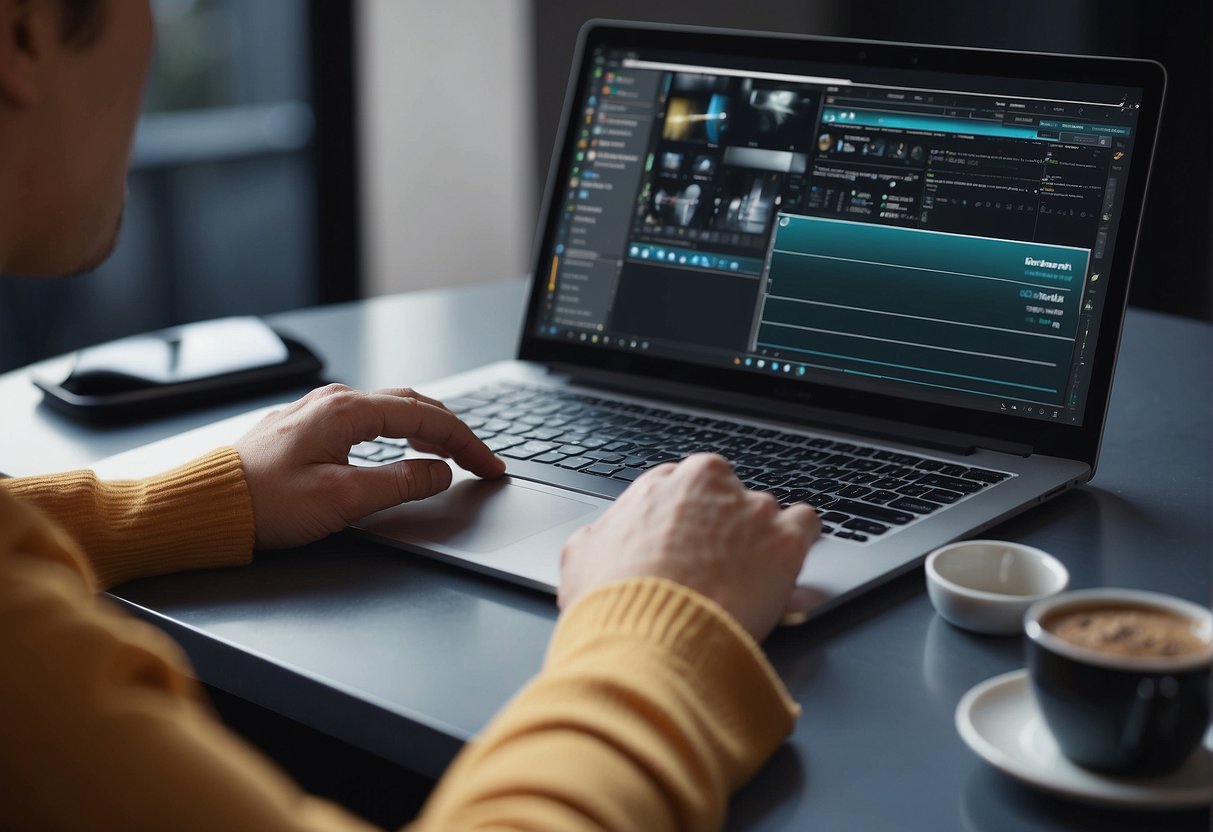
Microsoft Designer is a versatile graphic design app that empowers users to create a variety of visual content. From crafting engaging social media content to producing professional business materials, the app leverages AI technology to generate design ideas and facilitate personalization for unique designs.
Developing Social Media Content
Users can harness Microsoft Designer to develop eye-catching social media posts tailored for platforms like Instagram, Twitter, Facebook, LinkedIn, and TikTok. The app provides design suggestions that elevate the visual appeal of digital content, making engagement with followers a breeze.
- Templates: Choose from a variety of templates to kick-start your design process.
- Customization: Incorporate your own branding elements for a personalized touch.
Producing Business Materials
Microsoft Designer excels at creating business materials, from graphics to invitations for corporate events. Users can present their brand consistently across different media formats, benefiting from design ideas that resonate with their business identity and messaging.
- Business Cards: Professional layouts that communicate your brand’s essence.
- Reports: Elegant templates that bring data and information to life with clarity.
Crafting Personal Projects
Whether designing digital postcards, invitations, or unique graphics for personal use, users can easily craft projects that reflect their individual style. With intuitive tools, Microsoft Designer supports the personalization of projects, helping turn ideas into beautiful creations.
- Invitations: Design custom invites for weddings, parties, or gatherings.
- Digital Postcards: Share your travels or special moments with personal flair.
Adding Visual Enhancements
Incorporating animated visuals or color enhancements, Microsoft Designer allows for dynamic content creation. Users can add layers to their designs, leveraging AI-powered features to integrate visual dynamism and ensure their content stands out in any digital space.
- Animated Visuals: Enrich your graphics with subtle animations for added impact.
- Visual Effects: Use effects like color pop and background blur to make your design pop.
Advanced Features
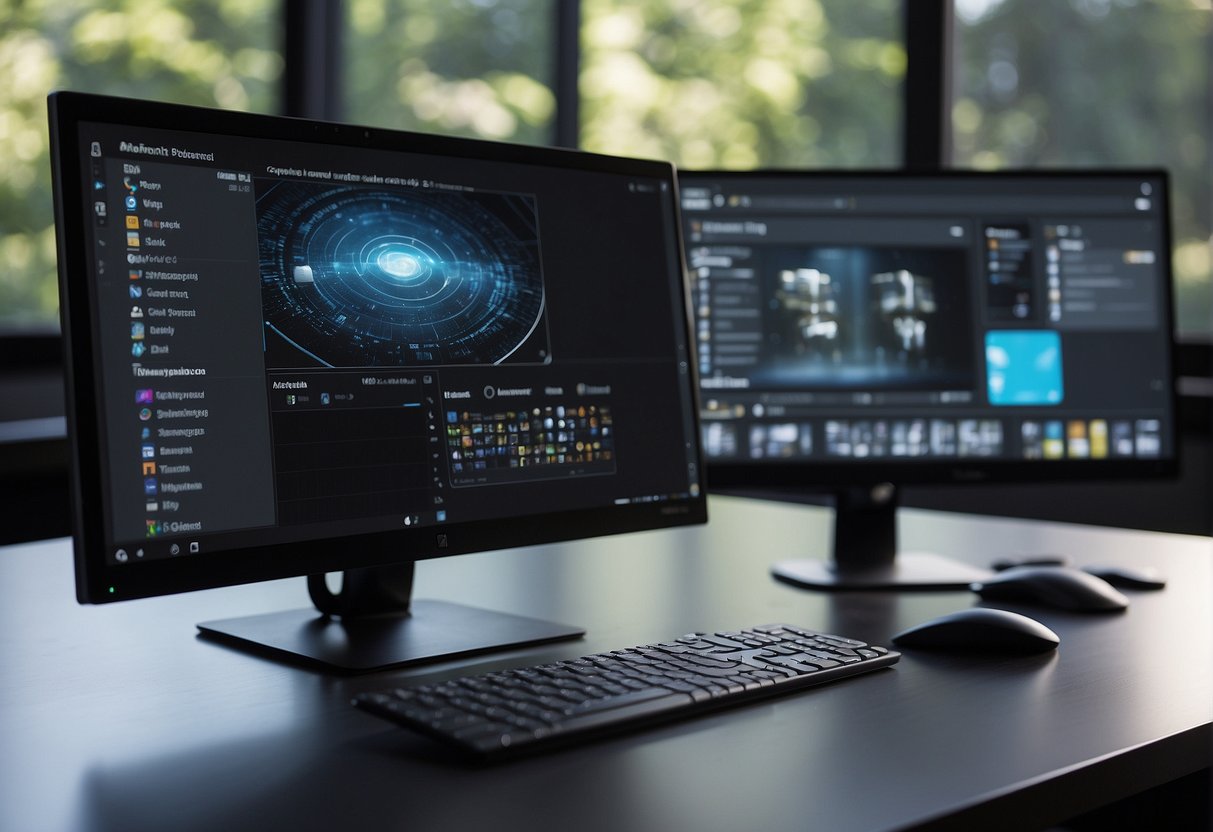
Microsoft Designer offers an array of advanced features that elevate design capabilities, especially for Microsoft 365 Personal and Family subscribers. These features leverage AI-powered technology to streamline design workflows and enhance customization.
Premium Capabilities for Subscribers
Microsoft 365 Personal and Family subscribers gain exclusive access to premium features in Microsoft Designer. These advanced capabilities include using DALL-E, an AI model that generates unique images from textual descriptions. Subscribers can also take advantage of advanced image editing options like the ability to erase objects from a design with precision, as well as a plethora of premium fonts that can help distinguish their work.
Image Editing and Personalization
Microsoft Designer’s AI-powered technology presents users with intuitive image editing tools. Users can replace backgrounds, resize images, and use cropping features to tailor visuals to their exact needs. Personalization is further enhanced through scenario-based suggestions, providing users with contextually relevant motion graphics and design elements tailored to specific scenarios.
Design Automation and Suggestions
AI-driven automation is a cornerstone of Microsoft Designer, with design suggestions that help users craft aesthetics quickly and efficiently. The software analyzes input text to propose design layouts, including the integration of relevant images and typographical choices. This intelligent system simplifies the design process, enabling even those without professional experience to create visually appealing content.
Collaboration and Sharing
In today’s interconnected digital landscape, Microsoft Designer emerges as a hub for collaborative creativity and seamless sharing across various platforms. It streamlines design workflows and integrates social connectivity, ensuring that ideas are effortlessly communicated within and beyond organizational confines.
Collaborating on Projects
Microsoft Designer facilitates real-time collaboration, allowing teams to work together on design projects irrespective of their physical location.
Team members can provide instant feedback, making the design process both dynamic and inclusive.
The following points highlight primary collaborative features in Microsoft Designer:
- Real-Time Editing: Multiple users can work on a single design simultaneously.
- Feedback Loop: Commenting features enable users to leave specific feedback directly on the design.
Sharing Designs Across Platforms
Once a design is polished to perfection, sharing it with the wider world is key.
Microsoft Designer ensures that designs can be shared across various social media platforms with ease.
The interoperability of Microsoft Designer with platforms such as Instagram, Twitter, Facebook, LinkedIn, and TikTok expands the reach of designs, enabling them to resonate with a diverse audience.
Here’s how designs transcend the boundaries of the software:
- Social Media Ready: Designs can be optimized for different platforms, maintaining the necessary resolutions and aspect ratios.
- QR Code Generation: Designs intended for print or physical display can include a QR Code, effortlessly linking the physical with the digital.
Each platform’s unique sharing capabilities are supported, ensuring that whether a design is intended for professional networking on LinkedIn or a viral marketing campaign on TikTok, the process remains straightforward and efficient.
Feedback and Community

The user experience with Microsoft Designer is enhanced by the community’s input and an active feedback system.
These elements are pivotal in refining the application while fostering a network of collaboration and inspiration among its users.
Providing Feedback to Microsoft
Users can directly influence the evolution of Microsoft Designer by utilizing the feedback button within the app.
By clicking this button, individuals can send their insights and suggestions directly to the development team.
Microsoft attentively reviews user feedback to make improvements to the application, ensuring that it meets the practical needs of its users.
For example:
- Issues or bugs: Report technical problems for timely resolution.
- Feature requests: Suggest new functionalities that could enhance the design process.
Engaging with Other Users
Engagement within the Microsoft Designer community occurs primarily through social media platforms, where users can share their artistry, gain inspiration, and connect with fellow designers.
Users can leverage hashtags tied to Microsoft Designer to categorize their content, contributing to a larger discourse and maximizing visibility.
A few common engagement strategies include:
- Sharing designs on social media with the hashtag #MicrosoftDesigner
- Participating in themed challenges promoted via hashtags
- Discovering tips and tricks from other community members’ posts
Future Developments

Microsoft Designer is poised for enhancements that embody the evolution of AI-assisted design. Its future developments are set to transform the creative process within Microsoft 365, providing users with more sophisticated tools and broader accessibility.
Upcoming Features
The Microsoft Designer tool is expected to introduce advanced capabilities powered by AI technology.
Specifically, there may be a deeper integration with DALL-E 2, the renowned AI image generation model. This partnership aims to enhance the tool’s ability to produce unique and contextually appropriate visual content.
Furthermore, users can anticipate refined machine learning algorithms that learn from individual design patterns, offering more personalized and efficient design suggestions.
Expanded Access and Updates
For Microsoft 365 Insiders, the Expanded Public Preview might provide earlier access to these new features, allowing feedback to refine the tools.
It’s anticipated that the Preview phase for Microsoft Designer will expand, lowering the barrier of entry to more users outside the initial waitlist.
As the Designer Preview becomes more widely available, Microsoft commits to frequent updates that leverage OpenAI‘s continuous advancements in AI and machine learning to stay at the forefront of creative design tools.
Frequently Asked Questions

Microsoft Designer is an AI-powered application designed for ease of use in graphic design. The following subsections address some common inquiries users may have about the software.
How can I download Microsoft Designer?
Users interested in obtaining Microsoft Designer can download the preview app for free. This allows individuals to test and provide feedback on the application.
What are the features of Microsoft Designer?
Microsoft Designer offers a multitude of features including AI-powered design suggestions and the ability to create various forms of media such as social media posts, invitations, and digital postcards.
Its Smart Layout Suggestions and Design Recommendations enhance design efficiency.
What pricing plans are available for Microsoft Designer?
While Microsoft Designer preview is currently available for free, detailed information about full-version pricing plans can be found through the official Microsoft Designer FAQ.
How do I access Microsoft Designer with my Office 365 subscription?
Microsoft Designer integrates with Microsoft 365 services. Users can get more information regarding Microsoft Designer’s availability with their Office 365 subscription on the Microsoft support site.
What types of design can I create with the Microsoft Designer image Generator?
The Microsoft Designer image Generator allows users to produce images based on inputted text, effectively turning words into creative visuals.
How do I log in to Microsoft Designer?
Users can log in to Microsoft Designer by visiting the application’s sign-in page and entering their Microsoft account credentials. This process is straightforward. It’s similar to logging into other Microsoft services.