How to Use Descript: Streamline Your Audio Editing Workflow
Descript is a powerful, multi-functional platform that simplifies the production of audio and video content. With its robust set of features, you can record, transcribe, edit, and share your media with ease. Whether you’re a seasoned podcaster, a video content creator, or someone just starting out, Descript provides a streamlined workflow designed to enhance your creative process.
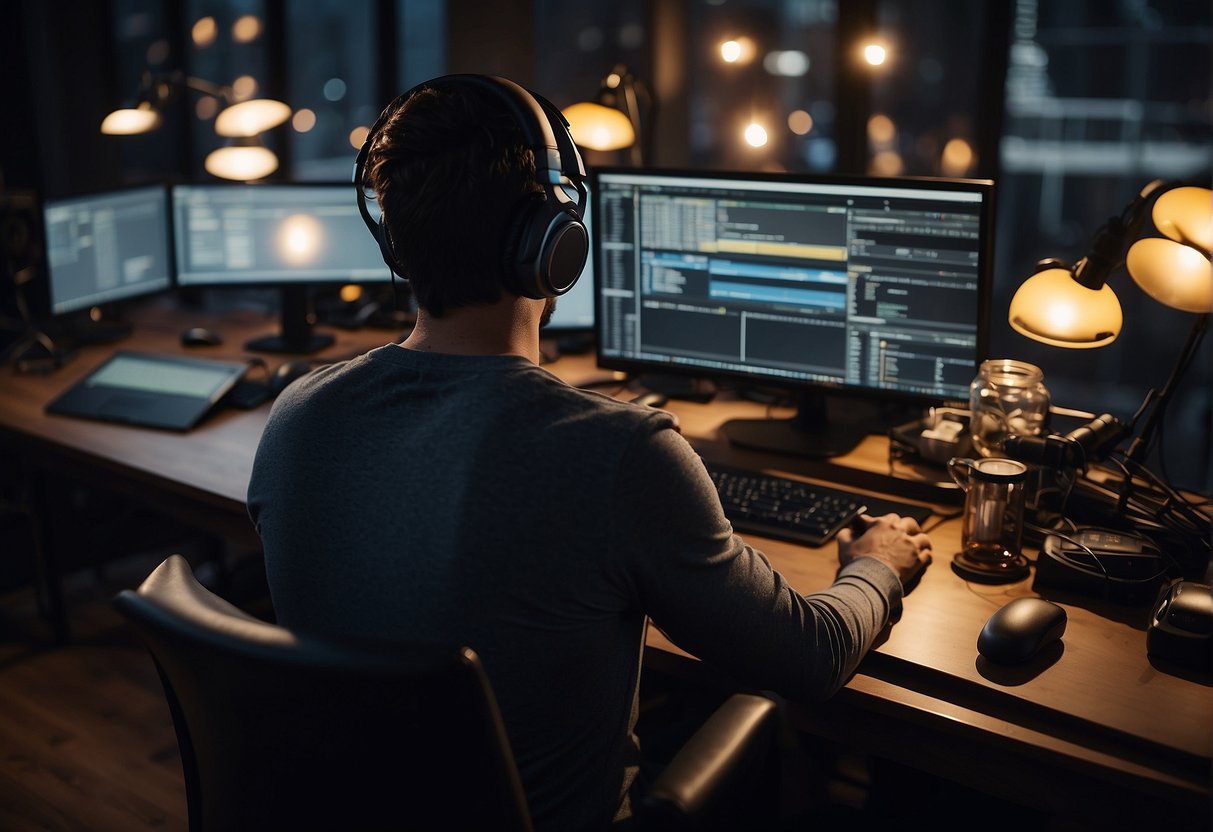
Getting started with Descript is straightforward. The platform offers tools for recording or importing your media, which is the first step to creating content. Once your audio or video is in Descript, you can utilize the automatic transcription service to convert speech into text, making the editing process as simple as editing a document. The video editing features allow you to layer in screen recordings, organize content seamlessly, and polish your project.
Key Takeaways
- Descript combines audio and video recording with transcription for easy editing.
- The editing platform streamlines the creative process with advanced features.
- Descript boosts collaboration and simplifies sharing and exporting content.
Getting Started with Descript
https://www.youtube.com/watch?v=uGvv5YndIiQ&embed=true
Descript is a robust, web-based software designed to streamline your audio and video editing workflow. With a gentle learning curve and powerful features, you’ll make high-quality content in no time.
Sign Up and Installation
To begin using Descript, you’ll need to create your account. Visiting their website provides access to various pricing options, including a Free Plan, suitable for basic editing needs. Once signed up, download and install the application on your computer to jumpstart your editing work.
Touring the Descript Workspace
After installation, acquaint yourself with the Descript Workspace. The interface is designed to be intuitive, capturing familiar features of doc and slide editors for ease of use. Take a moment to locate the main areas: the media bin, timeline, and the script editor. Navigating these areas efficiently is key to a smooth editing process.
Setting up Your First Project
When you’re ready to set up your first project, you can either record directly within Descript using your microphone or import existing audio/video files. Click on the Record button to capture content within Descript, or drag and drop files into the media bin to edit pre-recorded material. Remember, the Free Plan has some limitations, so check if it meets your requirements before starting.
Recording and Importing Media
https://www.youtube.com/watch?v=DlQOP9yKMhs&embed=true
In Descript, you have robust features to manage your media, whether you’re recording fresh content or importing existing audio and video files. You’ll be able to capture high-quality recordings and handle multitrack editing with ease.
How to Record in Descript
To start recording in Descript, select Camera to include video, or just use a microphone for audio. Prioritize your setup by adjusting the recording settings to suit your project’s requirements, ensuring optimal file size and quality. Capture not only your voice but also system audio, if needed, by choosing appropriate audio inputs.
Importing Audio and Video Files
When you’re ready to import files into Descript, drag and drop your audio or video file into the script area. Your file will be transcribed automatically if it’s audio. For video files or projects with mixed media types, you can organize everything effectively in the media library to streamline your workflow.
Working with Multitrack Recordings
Descript shines with multitrack recordings, allowing you to manage sessions with multiple speakers effortlessly. After importing a file, if it includes more than one speaker, you can ask Descript to detect the number of speakers, which simplifies the editing process. Screen recordings overlaying narration can also be synced and edited smoothly within your multitrack project.
Transcription and Editing

Descript offers a comprehensive suite of tools allowing you to accurately transcribe your recordings and edit your transcripts with ease. This service effectively blends transcription and editing functionalities to streamline your content creation process, ensuring high-quality audio output and precise word-for-word transcripts.
Transcribing Your Recordings
To start, upload your audio or video files directly into Descript. The platform will then automatically transcribe your content with high accuracy. You have the option to fine-tune the transcription for nuances in language or specific terminology that the automated process may not capture perfectly.
Editing Your Transcript
Once your transcripts are ready, editing is as simple as working with a text document. Use editing tools within Descript to cut, copy, paste, or delete sections of text, which in turn edits the audio seamlessly. This text-based approach to editing audio ensures you maintain the context of your content while crafting the perfect narrative flow.
Enhancing Audio with Studio Sound
Descript’s Studio Sound feature can greatly enhance the quality of your recordings, giving them a polished and professional feel. Activate Studio Sound to clean up any background noise and improve voice clarity. This function is invaluable for ensuring your final audio is crisp and clear.
Using Overdub for Voice Editing
For corrections or additions, Descript’s Overdub feature allows you to create a synthetic version of your voice to insert words or phrases that may have been missed or mispronounced. This powerful tool maintains the natural sound of your voice, ensuring consistency throughout your edited audio.
Each of these features contributes to the crafting of a professional and polished final product, whether it be a podcast, video, or other multimedia projects. With Descript, you can trust that your editing will be as accurate and efficient as possible.
Video Editing Features

Descript offers a range of video editing features designed to streamline your post-production process. From cutting and trimming content to adding visual effects, Descript provides tools that cater to both beginners and experienced editors.
Basic Video Editing
Initiate your editing journey by mastering the Timeline, where you can arrange and trim your videos with precision. Simply drag and drop your clips to reorder them, and use the intuitive cut and trim tools to refine your content. Key actions include:
- Splitting clips: Select the clip on the timeline, then click the split button or use a keyboard shortcut.
- Trimming: Click and drag the beginning or end of a clip to adjust its length.
Adding Effects and Transitions
Elevate your video’s visual appeal by incorporating Effects and Transitions. Descript makes it easy for you:
- Apply Transitions: Choose from a variety of transitions to add between clips, ensuring a smooth flow.
- Enhance with Effects: Instantly improve your video by dragging and dropping pre-set effects onto your clips.
Transitions and effects can be previewed before applying to find the perfect match for your project.
Working with Captions and Subtitles
Boost accessibility and engage a wider audience with Captions and Subtitles. Descript streamlines this process:
- Automatic Transcription: Generate transcripts of your video, which can then be turned into captions.
- Customization: Modify the font, size, and color of your captions to ensure they’re clear and readable on all devices.
Remember to align your captions with the corresponding audio for an optimal viewer experience.
Organizing and Searching Content

Efficiently managing your media files in Descript involves mastery of both organizing your projects and wielding the powerful search functionalities. The following subsections will guide you through using Drive View for a holistic project view and employing markers to categorize your content for rapid access.
Using Drive View and Search Functions
When you navigate to Drive View in Descript, you’re presented with a comprehensive layout of your projects and files, much like a traditional file explorer. To streamline your workflow, you can:
- Search across your entire drive or within a specific project to quickly locate any piece of content.
- Utilize descriptive keywords to identify the exact segment you need.
For instance, the built-in search tool lets you pinpoint text, filler words, or specific highlighted script sections. Just type in what you’re looking for in the search bar, and the results will populate instantly, saving you the hassle of manually skimming through your script.
Organizing Projects with Markers
Markers serve as your project’s bookmarks, helping you organize and categorize your media neatly. Employing markers effectively allows you to:
- Mark significant points or segments within your audio or video for easy reference.
- Navigate between important sections swiftly, without the need to scrub through timelines.
To add a marker, simply select a point on your timeline and apply the marker with a chosen label. Your future searches will be expeditious and more productive, because you can jump directly to these marked points with a simple search query.
Collaboration and Sharing

In the realm of digital content creation, your ability to collaborate with your team and share your work efficiently is crucial. Descript offers tools that streamline these processes, ensuring that your projects flow smoothly from conception to completion.
How to Collaborate on Projects
To collaborate on projects in Descript, start by inviting team members through the ‘Share’ button located at the top right corner of the application. Here’s how:
- Click on ‘Share’ and enter your collaborator’s email address.
- Assign permissions—’Can Edit’ or ‘Can Comment’—to set the level of access for each team member.
- Once collaborators receive the invitation, they can join the project and begin contributing.
By collaborating in real-time, you enhance the efficiency of your projects and ensure everyone is on the same page.
Sharing Your Work
Share your work with a broader audience by making use of Descript’s publishing features. Follow these steps:
- Go to the ‘Share’ menu.
- Choose ‘Publish’ to create a shareable link.
- Select ‘Page Settings’ to customize the page’s appearance and functionality.
- Click ‘Publish’ to generate the link which can be distributed to your intended audience.
This feature allows you to share drafts with stakeholders for review or publish a finished piece to your target audience seamlessly.
Adding Comments and Feedback
Effective collaboration often involves giving and receiving feedback. Here’s how you can add comments and feedback within Descript:
- While in a project, highlight the text or section where you wish to comment.
- Click the ‘Comment’ icon that appears.
- Type your comment and hit ‘Enter’ to post it.
Your teammates will be notified of the comment and can respond accordingly, facilitating clear and concise communication throughout the creative process.
Exporting and Publishing
When using Descript, mastering the exporting and publishing capabilities ensures you efficiently share and distribute your audio and video content outside the editing environment—whether that’s to your computer or directly to online platforms.
Exporting Options for Audio and Video
You have a variety of exporting options depending on your project’s needs. For audio content, you’re able to export in popular formats like MP3 or WAV, with control over quality settings to balance file size and fidelity. When exporting video, you can choose from a range of resolutions and file formats including MP4, ensuring your content meets the requirements of different devices and services.
-
Audio Export Options:
- MP3
- WAV
- Adjustable bitrates and quality fades
-
Video Export Options:
- MP4 (H.264)
- Different resolutions (720p, 1080p, etc.)
In your mixing process within Descript, ensure you’ve balanced your audio levels and applied any necessary fades or other effects before exporting.
Publishing to Platforms like YouTube and Zoom
Publishing directly from Descript not only saves time but also seamlessly integrates with platforms like YouTube—where you can upload your content directly from the Descript interface. When preparing to publish, review your final mix and ensure all layers are properly edited and in place. To host live meetings or presentations on platforms like Zoom, you can export your projects for easy sharing and displaying during your session.
- Direct Publishing Platforms:
- YouTube: Fully integrated, with options for title, description, and visibility settings
- Zoom: Export for live sharing during video conferencing
Remember, before you publish, double-check that all content is finalized and ready for your audience to ensure a smooth and professional presentation.
Utilizing Advanced Features

In Descript, leveraging advanced features can significantly enhance your audio and video projects. High-quality stock media and tailored templates streamline your creative process, while multitrack editing offers a level of precision that ensures a professional output.
Creating with Stock Media and Music
Descript gives you access to an array of stock media and music to enrich your productions. With a few clicks, you can search and incorporate high-quality audio clips and music tracks directly into your projects. Here’s how to add them:
- Navigate to the Media Library section.
- Use the search function to find specific stock media or music.
- Drag and drop your selection onto your timeline.
Utilizing this feature saves time and adds a layer of polish to your work with minimal effort.
Designing with Templates and Filler Words
Maximizing efficiency, templates offer a solid starting point for your projects. To use a template:
- Go to the Templates tab.
- Choose a template that matches your project needs.
- Start editing your content directly within the template structure.
Additionally, Descript autocorrects filler words effortlessly. Simply:
- Highlight the transcript text.
- Right-click and select “Remove filler words.”
- Choose to remove or ignore the fillers.
This keeps your narrative tight and professional.
Mastering Multitrack Editing
Multitrack editing in Descript unravels complex audio editing tasks, allowing you to manage multiple audio layers with ease. Here are the steps to master multitrack editing:
- Begin by importing multiple audio tracks into your project.
- Align and edit tracks simultaneously using the multitrack view.
- Adjust levels and apply effects as needed for each individual track.
Mastering this technique lets you mix and manage podcasts, interviews, and more with total control over the final sound.
Leveraging Descript Resources
In order to fully harness the capabilities of Descript, familiarizing yourself with its extensive resources is a must. From in-depth documentation to a supportive affiliate program, Descript provides a range of tools designed to enhance your user experience.

Accessing Descript Documentation
To get started, Descript Documentation is your essential guide. This comprehensive resource includes how-to guides, which cover everything from basics like recording audio to more advanced features such as editing multicam footage. The documentation is structured to assist not only novices but also seasoned users aiming to polish their skills.
Utilizing Support and Webinars
If you need additional help or want to expand your skill set, the Descript Support Staff is available to assist you. Moreover, you can enhance your knowledge by attending free webinars, which demonstrate key video features and best practices for using Descript effectively. Webinars are a great way to connect with experts and learn directly through live demonstrations.
Joining the Affiliate Partner Program
For enthusiasts and professionals alike, joining the Descript Affiliate Partner Program can be both rewarding and empowering. As a partner, you gain access to exclusive resources and potential earnings by promoting Descript. This program supports you in creating value for your audience while benefiting from Descript’s growth.
Frequently Asked Questions
Descript is a versatile tool for audio and video editing, offering a wide array of functionalities. This section aims to address common queries to optimize your experience with Descript.
What are the steps for beginners to get started with Descript?
To begin using Descript, start by signing up and installing the application. Familiarize yourself with the interactive tutorial provided to learn the basics, such as project creation, audio and video editing, and file management. For a detailed walkthrough, refer to the official Descript Help guide.
What methods are available for creating transcriptions in Descript?
Descript offers automated transcription features that convert audio into text. You can either directly record into Descript or upload pre-recorded audio for transcription. To enhance accuracy, you have the option to correct and edit transcripts manually. Further information on transcription features is available at the Descript Help section.
How can I utilize Descript for efficient video editing?
Descript allows you to edit videos by manipulating text transcriptions. You can cut, copy, paste, and delete sections of your transcript to edit audio and video correspondingly. It supports multicam editing, screen recording overlays, and transitions, which can be learned more about through the How-to guides of Descript.
Can Descript be used on mobile devices, and if so, how?
Currently, Descript does not offer a mobile application, but it operates efficiently on desktop systems including Windows and macOS. For updates on mobile compatibility, check the Descript Help platform.
What features does Descript offer for podcast production?
Descript is equipped with tools tailored for podcast production, such as high-quality recording, automatic transcription, and easy publishing. It also includes collaborative features, effects for audio mixing, and the capability of adding music and sound effects. Visit the Descript Help for extensive resources.
How can one leverage Descript’s text-to-speech functionality?
With Descript’s text-to-speech functionality, you can generate natural-sounding voiceovers from text. It includes a variety of voices and customization options to fit your project’s needs. You can also use this feature to create placeholder audio for your drafts. Instructions for using this tool are provided in the Reference manual of Descript Help.